The engineer who gets promoted isn’t just the one who makes the most robust layout; it’s the one who delivers it fast, without sacrificing quality, by mastering Top Layout Shortcuts.
After years in the industry, I’ve seen one thing separate the juniors from the seniors: how few mouse clicks they need to get the job done. Your mouse is for precision. Your keyboard is for speed.
Here are the top shortcuts and efficiency tips that will cut your layout time in half. Stop drawing like a student. Start working like a pro with these Top Layout Shortcuts.
1. The Unbeatable Trio: Stretch (F3), Copy (c), and Move (m)
Forget the toolbar. Your left hand should live on these three keys.
F3 (Stretch): This is your most powerful command. Need to adjust a block’s size? Move a wire without breaking connectivity? F3 is the answer. Select the edges and stretch. It maintains all connections flawlessly.
c (Copy): Obvious, right? But pros use it with the Array option. Hitting c, then Return, and enabling “Array” lets you create a 1D or 2D pattern of instances (like a capacitor bank) in one go. Perfect alignment, perfect spacing.
m (Move): Again, use it with Return. The “Offset” and “Angle” fields let you make precise, repetitive moves without thinking.
2. The “I” Key for Instant Insight
This is a secret weapon. Pressing i brings up the “What’s Selected” dialog box.
Why it’s gold: It tells you everything about the selected object: layer, width, coordinates, net name. No more guessing the width of a wire or the net it’s connected to. It’s instant information, saving you from digging through menus.
3. Shift + Middle Click: Change Layer on the Fly
You’re routing on Metal2 and need to switch to Metal3 for a short jump. Don’t go back to the LSW (Layer Selection Window).
The Pro Move: Select the wire segment, hold Shift and press the Middle Mouse Button. A dialog pops up allowing you to change its layer instantly. This is a massive time-saver.
4. Q for Properties: The Magic Window
You just placed a via. It’s the default size. You need it to be bigger.
The Slow Way: Delete it, find the via generator tool, set new parameters, and place it again.
The Pro Way: Select the via and press q. The Properties window opens. Change the size, number of rows/columns, and hit OK. It’s updated instantly. Use this for everything: instances, shapes, wires.
5. The “Zoom to Cell” Shortcut (Often F8)
You’re deep inside a hierarchy and need to see the top level to check placement.
The Pro Move: Press F8 (or your bound key). It instantly zooms you up one level in the hierarchy. Press it again to go higher. Beats scrolling and searching for the top cell view every time.
6. Bind Key for Save (e.g., F2), Undo (F5), Redo (F6)
You should never, ever use the menu bar for these.
The Setup: In your Virtuoso environment, bind F2 to geSave, F5 to geUndo, F6 to geRedo.
The Impact: This becomes muscle memory. You save, undo, and redo without a single thought, keeping your workflow seamless. A crashed session without a recent save is a career-limiting move. Avoid it.
7. Tab Key to Navigate Forms
When a properties (q) or copy dialog box is open, don’t click on the fields with your mouse.
The Pro Move: Use the Tab key to jump to the next field. Shift + Tab goes to the previous one. Type your value and hit Enter. Your hands never leave the keyboard.
8. Create → Derive → Cell (The Hierarchy Savior)
Working on a top-level chip with 50 blocks? Don’t work with all the polygons.
The Pro Move: Use Create → Derive → Cell. This creates a black-box abstract view of your block. You can now move, rotate, and snap this single object easily. It keeps your top-level layout clean and your software running fast.
9. Learn a Little SKILL or TCL
This is the ultimate shortcut. If you find yourself doing the same tedious task more than three times, automate it.
Simple Example: You need to select all pins on a specific layer to change their size. A simple 3-line script can do this in seconds.
How to Start: Use the Macro Recorder (Tools → Macro Manager). Record your actions, look at the generated code, and start tweaking it. This skill will make you indispensable.
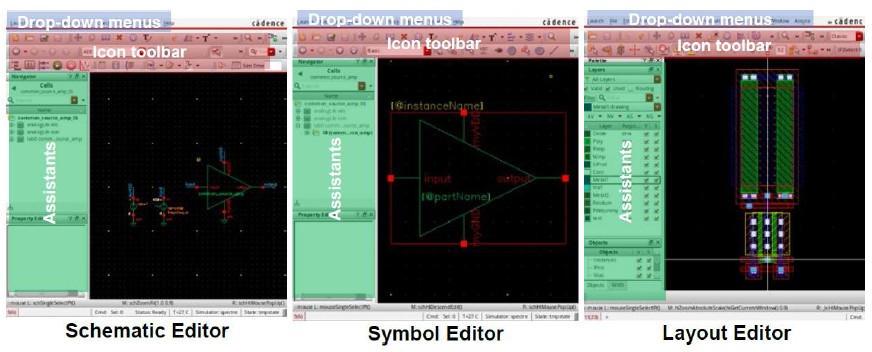
10.Virtuoso schematic and Layout Editor commands and Hotkeys
Final Word: Speed is a Byproduct of Skill
These shortcuts aren’t about cutting corners. They are about eliminating friction. They free up your mental energy to focus on what truly matters: the analog intent of your layout—the matching, the parasitics, the isolation. Mastering these Top Layout Shortcuts is what separates a good engineer from a great one
The faster you can execute the basic commands, the more time you have to think about the architecture. That is how you go from a layout drafter to a Layout Engineer by mastering these Top Layout Shortcuts.
Now, open Virtuoso and start binding those keys. Your next tape-out is waiting.
Semionics, Your Partner in semiconductor space , connecting industry needs with skilled professionals in Analog & Mixed-Signal IC Layout Design and Physical Verification ."from Basics to Brilliance .. A path to Semiconductor Industry!!"
We use cookies to improve your experience on our site. By using our site, you consent to cookies.
This website uses cookies
Websites store cookies to enhance functionality and personalise your experience. You can manage your preferences, but blocking some cookies may impact site performance and services.
Essential cookies enable basic functions and are necessary for the proper function of the website.
Name
Description
Duration
Cookie Preferences
This cookie is used to store the user's cookie consent preferences.
30 days
These cookies are needed for adding comments on this website.
Name
Description
Duration
comment_author
Used to track the user across multiple sessions.
Session
comment_author_email
Used to track the user across multiple sessions.
Session
comment_author_url
Used to track the user across multiple sessions.
Session
Statistics cookies collect information anonymously. This information helps us understand how visitors use our website.
Google Analytics is a powerful tool that tracks and analyzes website traffic for informed marketing decisions.
Used to determine whether a user is included in an A / B or Multivariate test.
18 months
_ga
ID used to identify users
2 years
_gali
Used by Google Analytics to determine which links on a page are being clicked
30 seconds
_ga_
ID used to identify users
2 years
_gid
ID used to identify users for 24 hours after last activity
24 hours
_gat
Used to monitor number of Google Analytics server requests when using Google Tag Manager
1 minute
_gac_
Contains information related to marketing campaigns of the user. These are shared with Google AdWords / Google Ads when the Google Ads and Google Analytics accounts are linked together.
90 days
__utma
ID used to identify users and sessions
2 years after last activity
__utmt
Used to monitor number of Google Analytics server requests
10 minutes
__utmb
Used to distinguish new sessions and visits. This cookie is set when the GA.js javascript library is loaded and there is no existing __utmb cookie. The cookie is updated every time data is sent to the Google Analytics server.
30 minutes after last activity
__utmc
Used only with old Urchin versions of Google Analytics and not with GA.js. Was used to distinguish between new sessions and visits at the end of a session.
End of session (browser)
__utmz
Contains information about the traffic source or campaign that directed user to the website. The cookie is set when the GA.js javascript is loaded and updated when data is sent to the Google Anaytics server
6 months after last activity
__utmv
Contains custom information set by the web developer via the _setCustomVar method in Google Analytics. This cookie is updated every time new data is sent to the Google Analytics server.
2 years after last activity
SourceBuster is used by WooCommerce for order attribution based on user source.
Name
Description
Duration
sbjs_session
The number of page views in this session and the current page path
30 minutes
sbjs_udata
Information about the visitor’s user agent, such as IP, the browser, and the device type
session
sbjs_first
Traffic origin information for the visitor’s first visit to your store (only applicable if the visitor returns before the session expires)
session
sbjs_current
Traffic origin information for the visitor’s current visit to your store
session
sbjs_first_add
Timestamp, referring URL, and entry page for your visitor’s first visit to your store (only applicable if the visitor returns before the session expires)
session
sbjs_current_add
Timestamp, referring URL, and entry page for your visitor’s current visit to your store
session
sbjs_migrations
Technical data to help with migrations between different versions of the tracking feature