You’ve learned the basics of Virtuoso. You can place transistors, draw wires, and run DRC. But are you still moving shapes one by one? Are you wasting hours on tasks that should take minutes? These pro tips for analog layout will show you how to work faster, smarter, and with greater precision
In the real world of tape-out deadlines, speed and accuracy are everything. The difference between a good layout engineer and a great one is often their mastery of the tools. Today, I’m sharing the pro tips I use daily to cut layout time in half. These aren’t just features; they are your weapons. By following these pro tips for analog layout, you’ll learn smarter ways to design faster. Each technique not only saves time but also builds long-term efficiency in your layout workflow
1. Master the Bind Keys
If you are still using the mouse to click on toolbar icons, you are working too hard.
The Pro Tip: Your left hand should always be on the keyboard, switching tools with single keys. This is non-negotiable.
How to Implement: Go to your CIW (Command Interpreter Window) and type bindkey. You will see a list of all the shortcuts. The real power is in customizing them. Edit your .cdsinit file to create shortcuts for your most frequent commands. For example, map F2 to geSave, F3 to geUndo, F4 to geRedo. Make a for attach, s for stretch, c for copy. This muscle memory will save you thousands of mouse clicks.
2. The “Create → Array”
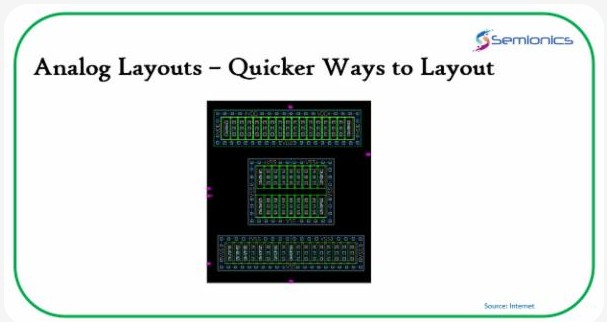
You need to place 100 capacitors for a big decoupling network. You are not going to copy-paste them 100 times.
The Pro Tip: Use Create → Array. This lets you create a 1D or 2D array of instances with specified rows, columns, and spacing in one go.
Why it’s a Game-Changer: It’s perfectly aligned, evenly spaced, and DRC-clean by construction. It also makes your layout look professional and is easy to modify later.
3. Stretch (F3) is Your Best Friend
Need to move a group of wires without breaking connectivity? Don’t re-route.
The Pro Tip: Use the Stretch command. Select the points or shapes you want to move, hit F3 (or your custom key), and drag. The connected wires will stretch and move with it, maintaining all connections.
Use Case: Perfect for adjusting the size of a block or shifting a whole row of cells without tearing everything apart.
4. The Magic of “Create → Derive → Cell”
This is the secret sauce for top-level integration.
The Pro Tip: You have a complex block (like a bias generator) used multiple times. Don’t flatten it! Use Create → Derive → Cell.
Why it’s a Game-Changer: It creates a black-box view of your block. You can then move, rotate, and snap this single object easily. The tool manages all the internal complexities. Need to edit it? Double-click to go inside. This keeps your hierarchy clean and your top-level layout manageable.
5. Skill Scripting:
You see a repetitive, tedious task. Your first thought shouldn’t be “I have to do this,” it should be “Can I write a script for this?”
The Pro Tip: Learn the basics of Skill scripting. You don’t need to be a master coder.
Real-World Example: You need to add a label to 50 nets. Instead of doing it manually, a simple 5-line Skill script can loop through all nets in a cell view and add a label with the net name automatically. This is the difference between a 30-minute task and a 10-second task.
How to Start: Start with simple macros. Record your actions (Tools → Macro Manager) and look at the generated Skill code. Tweak it. This is how you start.
6. Super Mouse Functions
Your mouse has more power than just left-click and right-click.
The Pro Tip: Master the middle button and keyboard-mouse combos.
Middle Click in the layer palette to quickly select a layer for drawing.
Shift + Middle Click to change the object’s layer.
Ctrl + Middle Click to change the object’s purpose.
Hold Alt to temporarily disable snap-to-grid for fine adjustments.
Hold Shift to constrain movement to horizontal or vertical directions.
7. The “Copy To Layer” Trick for Dummy Fills
You need to create a large area of dummy metal for density. Don’t draw rectangles.
The Pro Tip: Draw one small dummy metal square. Then use Edit → Copy To Layer. You can specify the number of rows and columns and the pitch to instantly create a perfect, arrayed fill pattern that meets density rules.
8. Turbocharge Your Learning: “Tool Tips” and “Learn Mode”
Forgot what a command does?
The Pro Tip: Enable Tool Tips in the options. Hover your mouse over any icon, and a brief description will appear. Even better, use Learn Mode (if available in your tool version). It highlights the next step you need to take, guiding you through complex commands.
Final Word: Work Smarter, Not Harder
These tips aren’t just about speed; they’re about precision and reducing errors. Automating tedious work frees your mind to focus on what truly matters: the architecture of your layout—the matching, the parasitics, the floorplan. Applying these pro tips for analog layout helps you achieve both accuracy and efficiency in every project.
The engineers who get promoted, who become team leads, are the ones who solve problems efficiently. They are the ones who write a script to fix a problem for the whole team, not just for themselves. Applying these pro tips for analog layout ensures you stand out as a faster, smarter, and more valuable engineer
Start with one tip today. Master it tomorrow. Build your skill, and you will build an unbeatable career.
Semionics, Your Partner in semiconductor space , connecting industry needs with skilled professionals in Analog & Mixed-Signal IC Layout Design and Physical Verification ."from Basics to Brilliance .. A path to Semiconductor Industry!!"
We use cookies to improve your experience on our site. By using our site, you consent to cookies.
This website uses cookies
Websites store cookies to enhance functionality and personalise your experience. You can manage your preferences, but blocking some cookies may impact site performance and services.
Essential cookies enable basic functions and are necessary for the proper function of the website.
Name
Description
Duration
Cookie Preferences
This cookie is used to store the user's cookie consent preferences.
30 days
These cookies are needed for adding comments on this website.
Name
Description
Duration
comment_author
Used to track the user across multiple sessions.
Session
comment_author_email
Used to track the user across multiple sessions.
Session
comment_author_url
Used to track the user across multiple sessions.
Session
Statistics cookies collect information anonymously. This information helps us understand how visitors use our website.
Google Analytics is a powerful tool that tracks and analyzes website traffic for informed marketing decisions.
Used to distinguish new sessions and visits. This cookie is set when the GA.js javascript library is loaded and there is no existing __utmb cookie. The cookie is updated every time data is sent to the Google Analytics server.
30 minutes after last activity
__utmc
Used only with old Urchin versions of Google Analytics and not with GA.js. Was used to distinguish between new sessions and visits at the end of a session.
End of session (browser)
__utmz
Contains information about the traffic source or campaign that directed user to the website. The cookie is set when the GA.js javascript is loaded and updated when data is sent to the Google Anaytics server
6 months after last activity
__utmv
Contains custom information set by the web developer via the _setCustomVar method in Google Analytics. This cookie is updated every time new data is sent to the Google Analytics server.
2 years after last activity
__utmx
Used to determine whether a user is included in an A / B or Multivariate test.
18 months
_ga
ID used to identify users
2 years
_gali
Used by Google Analytics to determine which links on a page are being clicked
30 seconds
_ga_
ID used to identify users
2 years
_gid
ID used to identify users for 24 hours after last activity
24 hours
_gat
Used to monitor number of Google Analytics server requests when using Google Tag Manager
1 minute
_gac_
Contains information related to marketing campaigns of the user. These are shared with Google AdWords / Google Ads when the Google Ads and Google Analytics accounts are linked together.
90 days
__utma
ID used to identify users and sessions
2 years after last activity
__utmt
Used to monitor number of Google Analytics server requests
10 minutes
SourceBuster is used by WooCommerce for order attribution based on user source.
Name
Description
Duration
sbjs_migrations
Technical data to help with migrations between different versions of the tracking feature
session
sbjs_session
The number of page views in this session and the current page path
30 minutes
sbjs_udata
Information about the visitor’s user agent, such as IP, the browser, and the device type
session
sbjs_first
Traffic origin information for the visitor’s first visit to your store (only applicable if the visitor returns before the session expires)
session
sbjs_current
Traffic origin information for the visitor’s current visit to your store
session
sbjs_first_add
Timestamp, referring URL, and entry page for your visitor’s first visit to your store (only applicable if the visitor returns before the session expires)
session
sbjs_current_add
Timestamp, referring URL, and entry page for your visitor’s current visit to your store